 Utilities
iOS and macOS
TrackLens: Screen Recorder
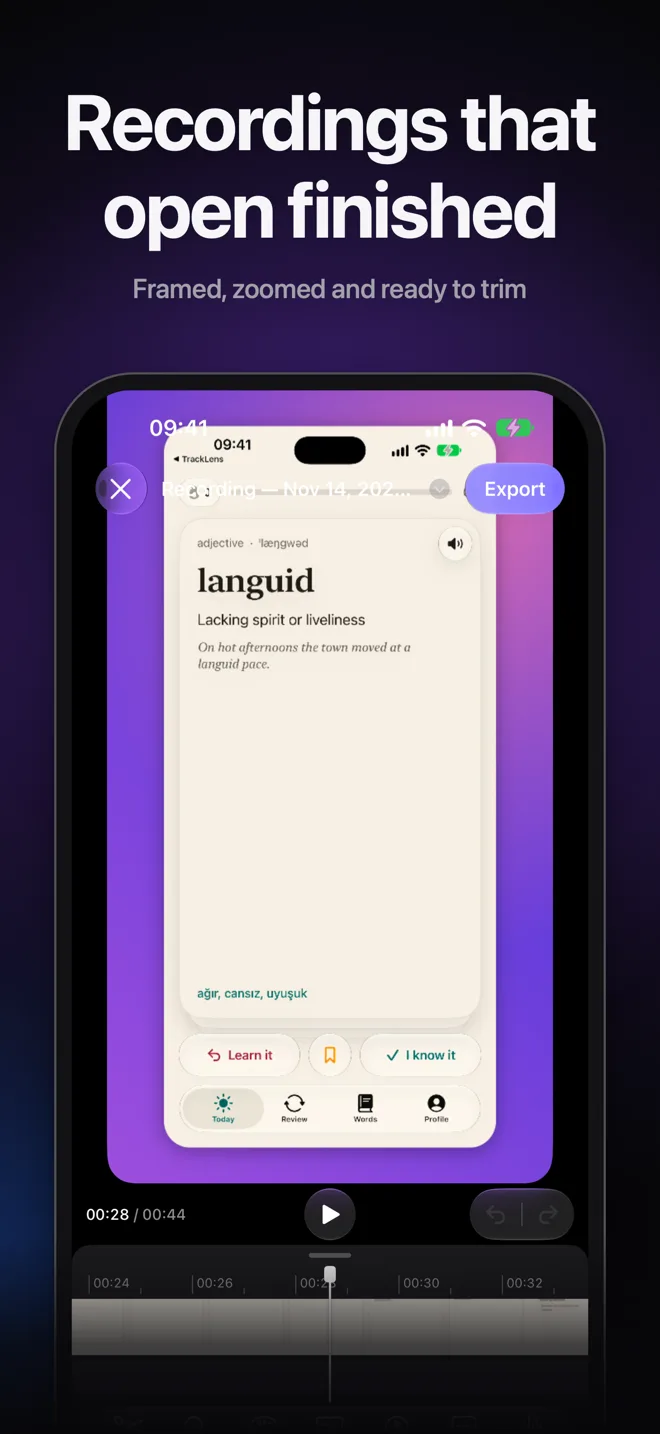
Record your screen on iPhone, iPad or Mac, open the project, and the video already looks finished. TrackLens zooms in where things happen, places your screen on a clean background with rounded corners and a shadow, and keeps your camera in a tidy layout. You only cut what you don't want.
On the iPhone
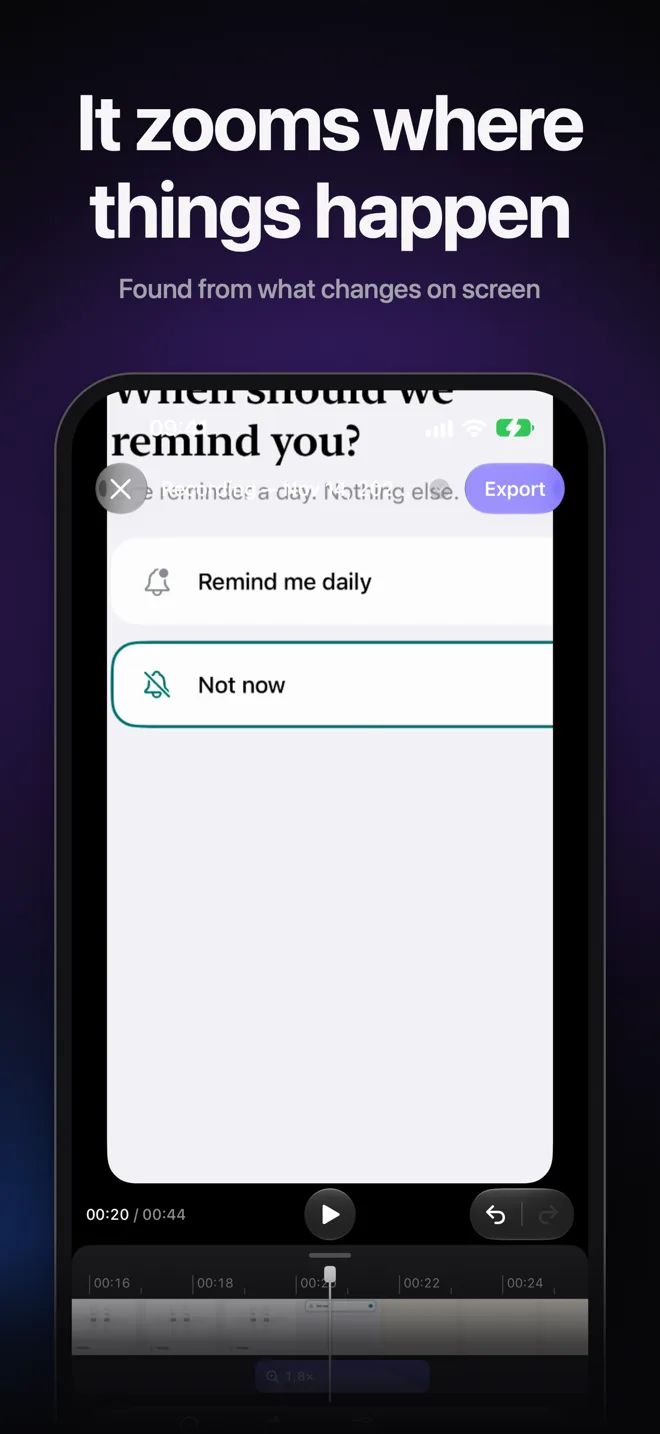
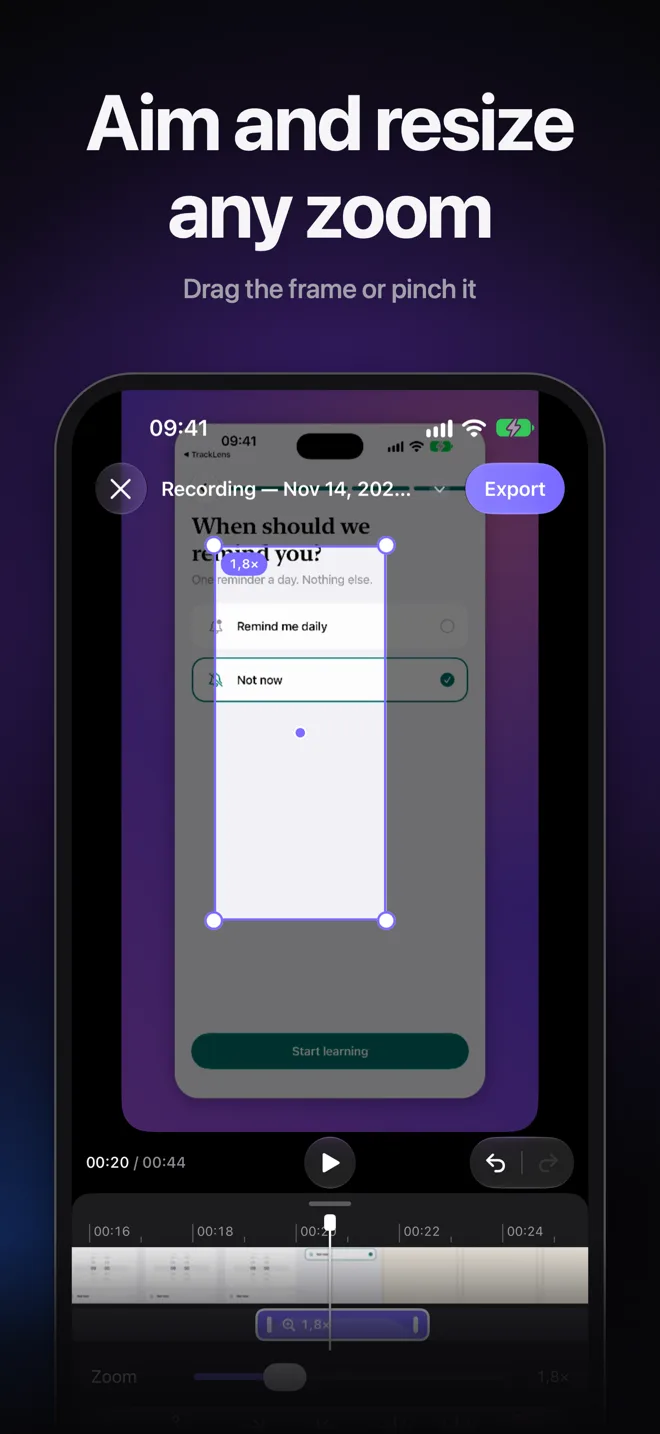
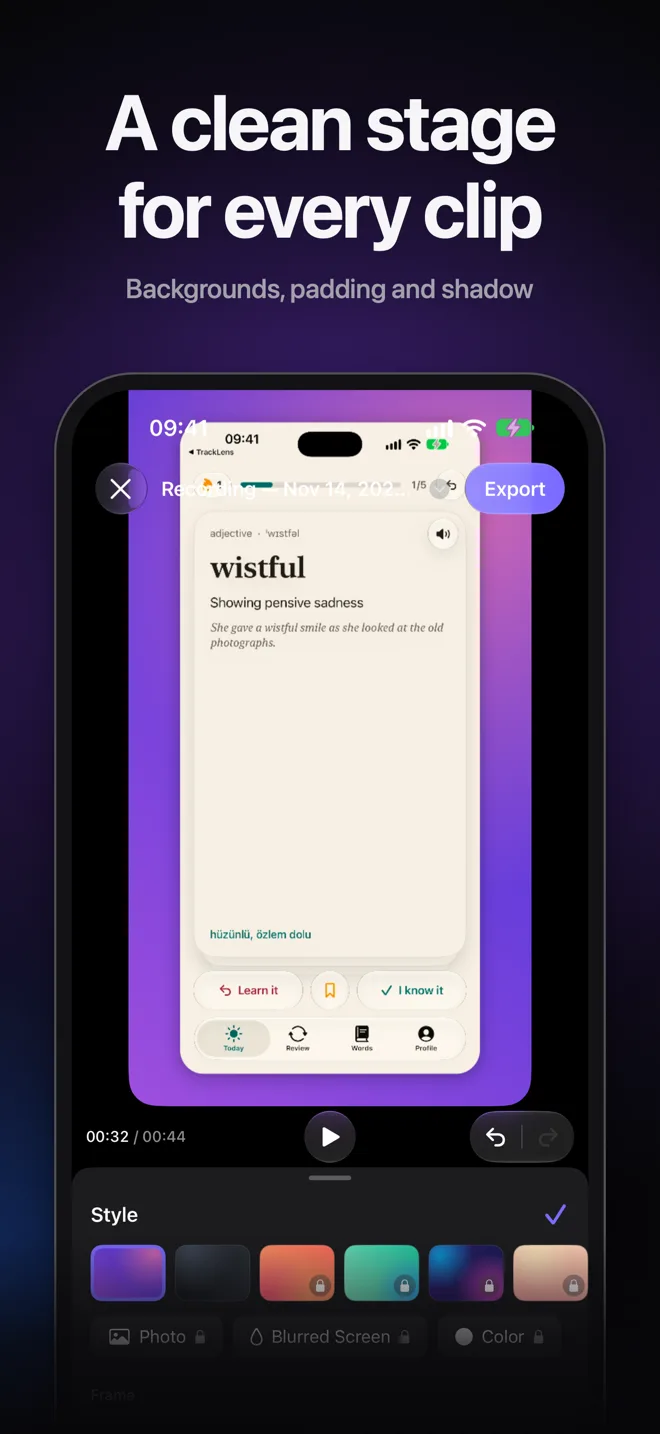
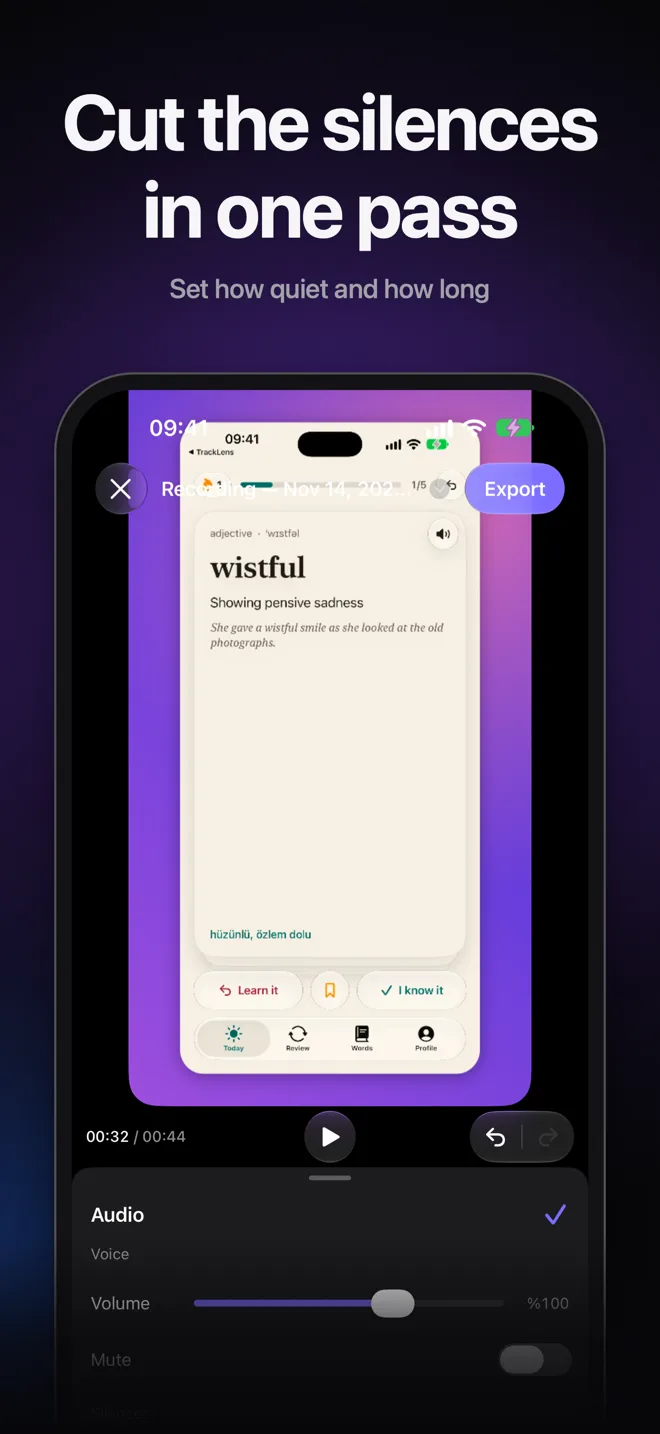
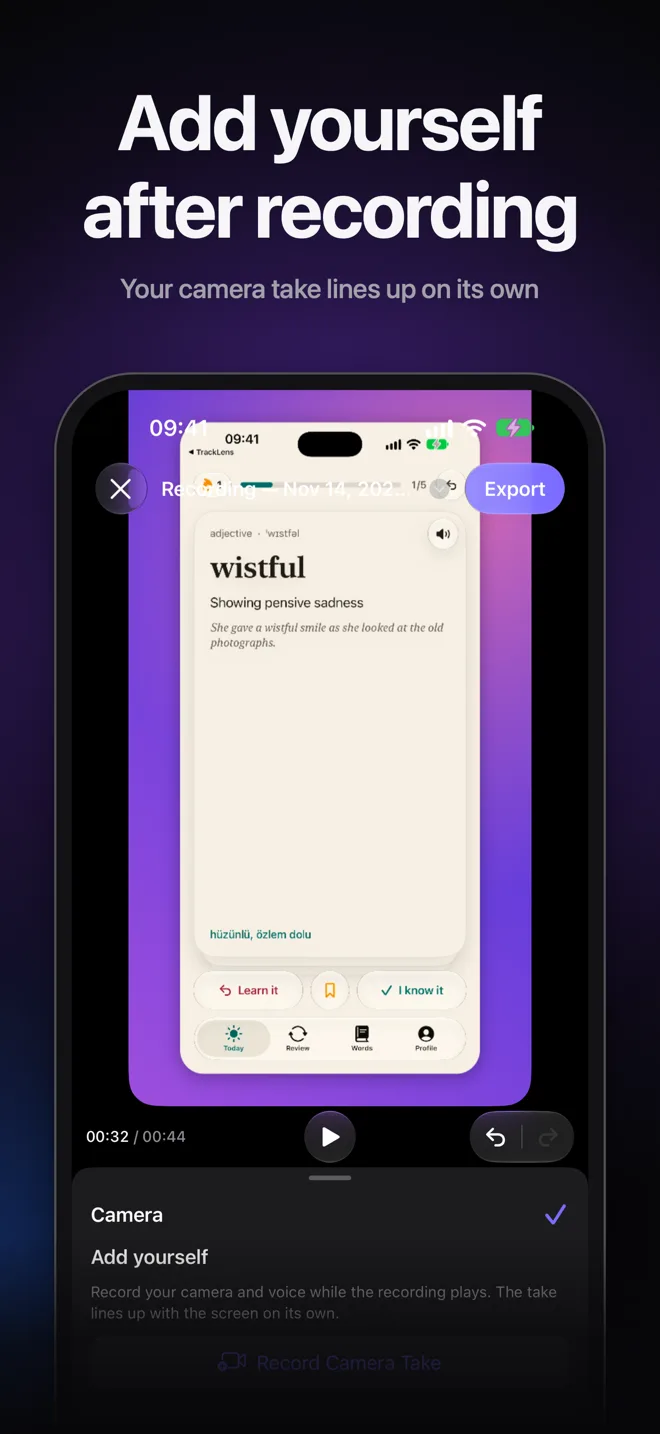
Screens from the current version on the App Store.
How it works
TrackLens, from first tap to finished.
Start a recording
On iPhone and iPad, tap Record in the app, or start from a widget, Control Center, Siri, Shortcuts or the Action button, with the microphone on. On Mac, pick a display, a window or an area from the menu bar or a global shortcut.
Record
Pause and resume without a gap. On Mac your camera, microphone and system audio each go on their own track, and a teleprompter can sit beside the camera without showing up in the capture. On iPhone and iPad you can add a camera take afterwards.
Open the project
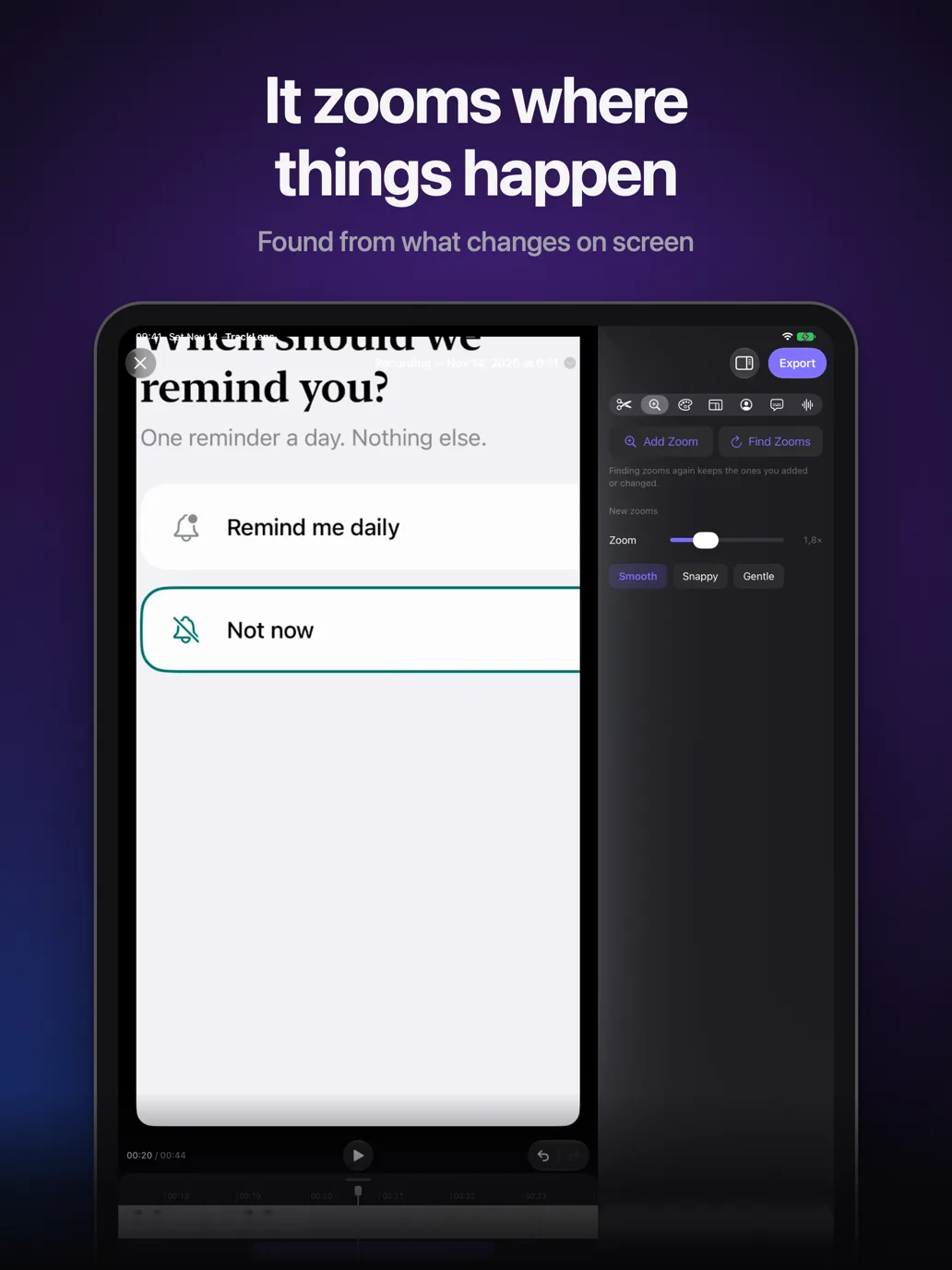
It already looks finished: zooms where things happen (on every click on Mac, where the screen changes on iPhone and iPad), your screen on a background with padding, rounded corners and a shadow, and your camera in a tidy layout.
Cut and export
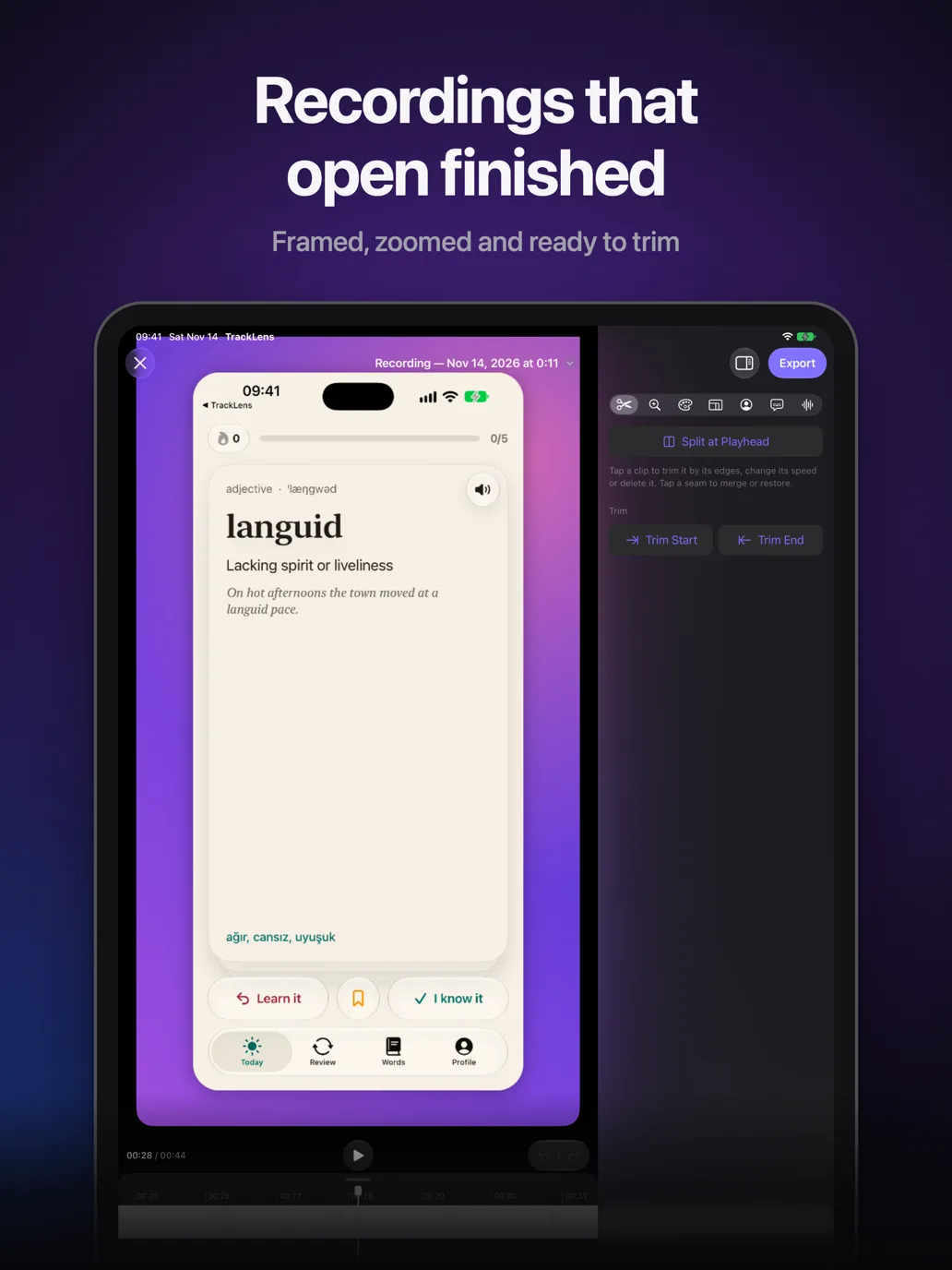
Trim, split, cut and change speed on the timeline, aim or move any zoom, and cut silent stretches in one pass. Export 16:9, 9:16, 1:1 or 4:3, up to 4K at 60 fps, or a GIF.
On the iPad
The same app with room to spread out.
What it does
- iPhone, iPad and Mac from one App Store listing
- Zooms where the screen changes on iPhone and iPad, on every click on Mac
- Microphone, app or system sound and camera on separate tracks
- Camera take recorded after the fact on iPhone and iPad, lined up on its own
- A redrawn, smoothed cursor and a teleprompter hidden from the capture on Mac
- Backgrounds, rounded corners, shadows and camera layouts you can switch
- Timeline with trim, split, speed, zoom editing and one-pass silence removal
- On-device captions and filler-word cutting on iOS 26 and macOS 26
- Export 16:9, 9:16, 1:1 or 4:3 up to 4K 60 fps, or GIF
On iphone and ipad
- Start from the app, a Home Screen or Lock Screen widget, Control Center, Siri, Shortcuts or the Action button
- The whole screen with your microphone and the sound of your apps; pause and resume without a gap
- Zooms placed where the screen changes; drag a zoom's frame to aim it, pinch its corners to resize it
- Record a camera take while your recording plays back, so your face and voice line up without syncing
- Import any video from Photos and give it the same treatment
- Save to Photos or share straight from the export screen
On mac
- A full display, one window, or an area you draw, from the menu bar or a global shortcut
- Camera, microphone and system audio on their own tracks, with no extra audio driver; Continuity Camera and Desk View work too
- Zooms on every click with spring-like motion, and a redrawn cursor you can resize, smooth, ripple on clicks and hide when idle
- A teleprompter beside your camera; it and every TrackLens window stay out of the capture
- HEVC, H.264 or ProRes, and Shortcuts actions to start, stop and export
On both
- Backgrounds, padding, rounded corners and shadows; the camera as a corner bubble, side by side, full frame or hidden
- A timeline with trim, split, cuts and speed changes; add, move or remove any zoom and regenerate the automatic ones without losing yours
- Find silent stretches and cut them in one pass
- Captions transcribed on the device (iOS 26 and macOS 26), burned in or saved as SRT, and filler words cut from the transcript
- 16:9, 9:16, 1:1 and 4:3, each cropped to follow the zoom, up to 4K at 30 or 60 fps, or an animated GIF
- Undo for every change; projects save themselves
Free and pro
Recording and editing are free and unlimited, with exports up to 1080p and a small "Made with TrackLens" mark. TrackLens Pro, monthly, yearly or once, removes the mark and adds 4K, every background, captions, silence and filler-word removal, GIF and ProRes, on every device signed in to the same Apple Account.
Recordings, transcripts and projects stay on your device. There is no account, nothing is uploaded, and keystrokes are never recorded.
Made for app walkthroughs, product demos, tutorials, bug reports, lessons and launch videos.
Who it is for
App walkthroughs and product demos
Record an iPhone app or a Mac app and get zooms on what matters with no keyframes to set by hand, ready for a launch post or an App Store preview.
Tutorials and online lessons
Your camera beside the screen, silences cut in one pass, and captions transcribed on the device on iOS 26 and macOS 26.
Bug reports
Record one window or one screen, cut the waiting, and export a short MP4 or GIF that shows the problem faster than a paragraph.
Free in your browser
Try the idea first, no install needed.
Guides and resources
More on tracklens.cihat.dev, the TrackLens website.
Questions
Is TrackLens on iPhone and iPad too?
Yes. One App Store listing covers iPhone and iPad (iOS 17 or later) and Mac (macOS 15 or later). TrackLens Pro bought on one of them works on the others signed in to the same Apple Account.
How do I record my iPhone screen with my voice?
Touch and hold Screen Recording in Control Center, turn Microphone on, choose TrackLens and tap Start Broadcast, or tap Record in the app. The recording opens in TrackLens with the zooms already placed.
Does TrackLens need an audio driver for system sound on Mac?
No. Microphone and system audio are captured by macOS itself, on separate tracks from your camera, with nothing extra to install.
Do I have to add the zooms myself?
No. On Mac, TrackLens zooms in where you click; on iPhone and iPad, where the screen changes. You can add, move, aim or remove any zoom afterwards, and regenerate the automatic ones without losing the zooms you placed.
Can it add captions and cut filler words?
On iOS 26 and macOS 26, yes. Captions are transcribed on the device, burned in or saved as SRT, and filler words in the transcript (um, uh, er, ah, hmm, like and “you know”, plus Turkish, German, French and Spanish ones and drawn-out sounds like “mmm”) can be cut. On Mac you can edit the list. On iOS 17 to 18 and macOS 15 everything except captions and filler words works.
What is free, and what does TrackLens Pro add?
Recording and editing are free and unlimited, and free exports go up to 1080p with a small “Made with TrackLens” mark and two backgrounds. TrackLens Pro removes the mark and adds 4K, all backgrounds, captions, silence and filler removal, GIF and, on Mac, window frames, the voice-follow teleprompter and ProRes, as a monthly plan, a yearly plan or a one-time purchase. A lifetime purchase from an earlier version of TrackLens still unlocks Pro.
Are my recordings uploaded?
No. Recordings, transcripts and projects stay on your device, nothing is uploaded and there is no sign-in. Projects save themselves, and undo covers every change.
Related apps
More from sound and video.
TrackLens on the App Store
Webcam & Audio with Auto Zoom.